
- Please highlight and Copy (Ctrl+C) the above email signature.
- Within Outlook, create a new E-mail.
- In the new E-mail on the Message tab, in the Include group, click Signature, and then click Signatures.
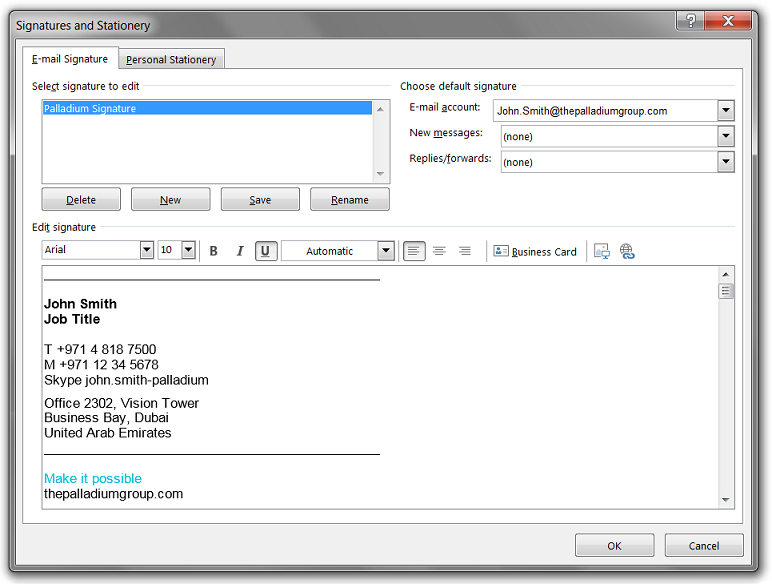
- Select an existing signature or create a New signature using the New button.
- If creating a new signature, enter a name for the signature when prompted.
- In the Edit signature field, Paste (Ctrl+V) the signature copied from Step 1.
- Choose a default signature to be applied to new messages or replies/forwards if required.
- Click OK
Note: The signature that you just created or modified will not appear in the currently open E-mail; please close and open a new E-mail.